How To Transfer Old Footage to a Digital Format
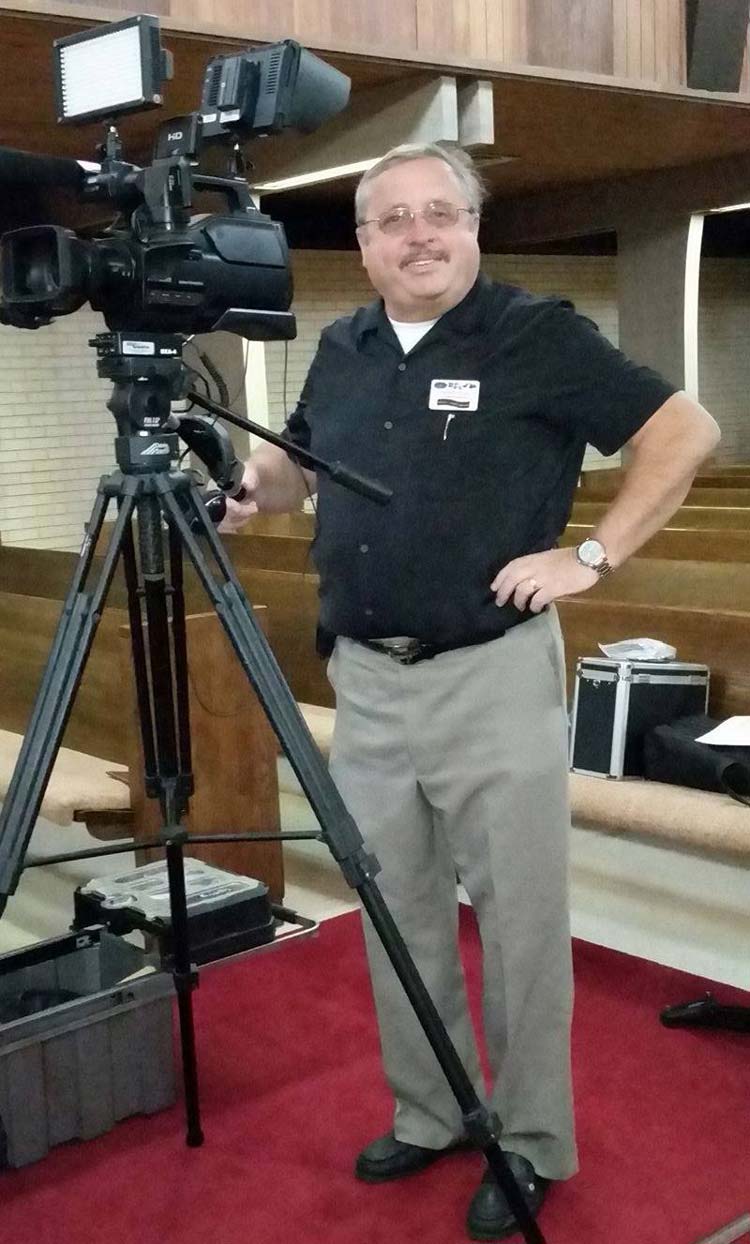
Hello! I’m Freddy with AWV Production. Today, I’m going to guide you on how to convert your old VHS, VHSC, and Hi8 tapes to digital format. Over the years, we’ve captured countless memories on these formats, but technology has moved on, making it harder to view and share these precious moments. Let’s bring those memories into the digital age!
Why Convert Your Memories?
Old tapes degrade over time. Converting them to digital format is crucial to preserve these memories before they fade away. This way, you can easily view, share, and enjoy them for years to come.
How Old Media Degrades
In Florida’s climate, VHS tapes and old films are particularly vulnerable. Here’s how they can degrade:
- Humidity and Heat: High humidity causes mold growth, while heat warps the tapes. Both factors can ruin video and audio quality.
- Water Damage: Hurricanes and flooding can cause severe water damage. Tapes exposed to water can stick together, grow mold, or suffer permanent damage to the magnetic tape.
- Fire: Fires can destroy your memories instantly. Heat can melt the plastic, rendering the tapes unusable.
If you also noticed a smell coming from your old film, film degradation has begun.
Equipment You Need
To get started, you’ll need the following:
- VCR or Camera: To play your tapes.
- Video Capture Device: To convert analog signals to digital.
- Computer: To store and edit your digital files.
- Cables: AV cables (yellow for video, white and red for audio) or S-video cables for better quality.
- Storage Media: SD card or USB drive.
Using the ClearClick Video 2 Digital 2.0
The ClearClick Video 2 Digital 2.0 makes converting VHS tapes easy. Enjoy and share your old movies and family memories from 20 years ago on your computer, tablet, smartphone, or TV.
Here’s how:
- Set Up the Device: Plug the device into a power source using the USB cable or adapter.
- Connect to VCR: Attach the AV cables to your VCR (yellow, white, and red) and the device.
- Insert Storage Media: Insert an SD card or USB drive into the device.
- Check Settings: Use the menu to set the date, time, and video source (AV).
- Start Recording: Press play on your VCR and record on the ClearClick device. Stop when done. Each recording session creates a new file.
Using IO Data Capture Device and OBS Software
The IO Data capture device, paired with OBS software, offers a cost-effective solution:
- Install Drivers: Use the included CD to install drivers for the IO Data capture device.
- Connect to VCR: Attach the AV cables (or S-video for better quality) to your VCR and the device.
- Download OBS: Install OBS Studio from obsproject.com.
- Set Up OBS:
- Open OBS and adjust settings: Set the video resolution to 1440×1080 and frame rate to 59.94 FPS.
- Add a “Video Capture Device” source and select the IO Data device.
- Adjust audio levels and ensure the video fits the screen (right-click the source, choose “Transform,” and then “Stretch to Screen”).
- Record: Press play on your VCR and start recording in OBS. Stop when done and save the file.
Using Elgato Video Capture
For higher quality, use the Elgato Video Capture device:
- Install Software: Download and install the Elgato software.
- Connect to VCR: Attach the AV cables to your VCR and the Elgato device.
- Record: Name your recording, set the aspect ratio, and press record on the software while playing the tape on your VCR.
- Trim and Save: After recording, trim unwanted parts and save the file.
Transferring Files to Your Computer
Once you’ve captured your videos, transfer the files to your computer:
- Insert Storage Media: Plug your SD card or USB drive into your computer.
- Copy Files: Open the drive, find the video files, and drag them to your computer’s hard drive.
- Edit and Share: Use video editing software to enhance your videos or upload them to a cloud service to share with family and friends.
How long will video transfer take?
The time it takes to transfer video depends on the length of the original tape. Video transfer happens in real time, so a 2-hour VHS tape will take 2 hours to transfer to a digital format. Keep in mind that additional time may be needed for setup, editing, and saving the digital files.
Conclusion
Converting old tapes to digital format is a rewarding project that ensures your memories are preserved. Each method offers different benefits, from the simplicity of ClearClick to the flexibility of IO Data with OBS. If this seems overwhelming, consider reaching out to a professional service like AWV Production. We can help you transfer old footage with high quality care and minimal hassle.